
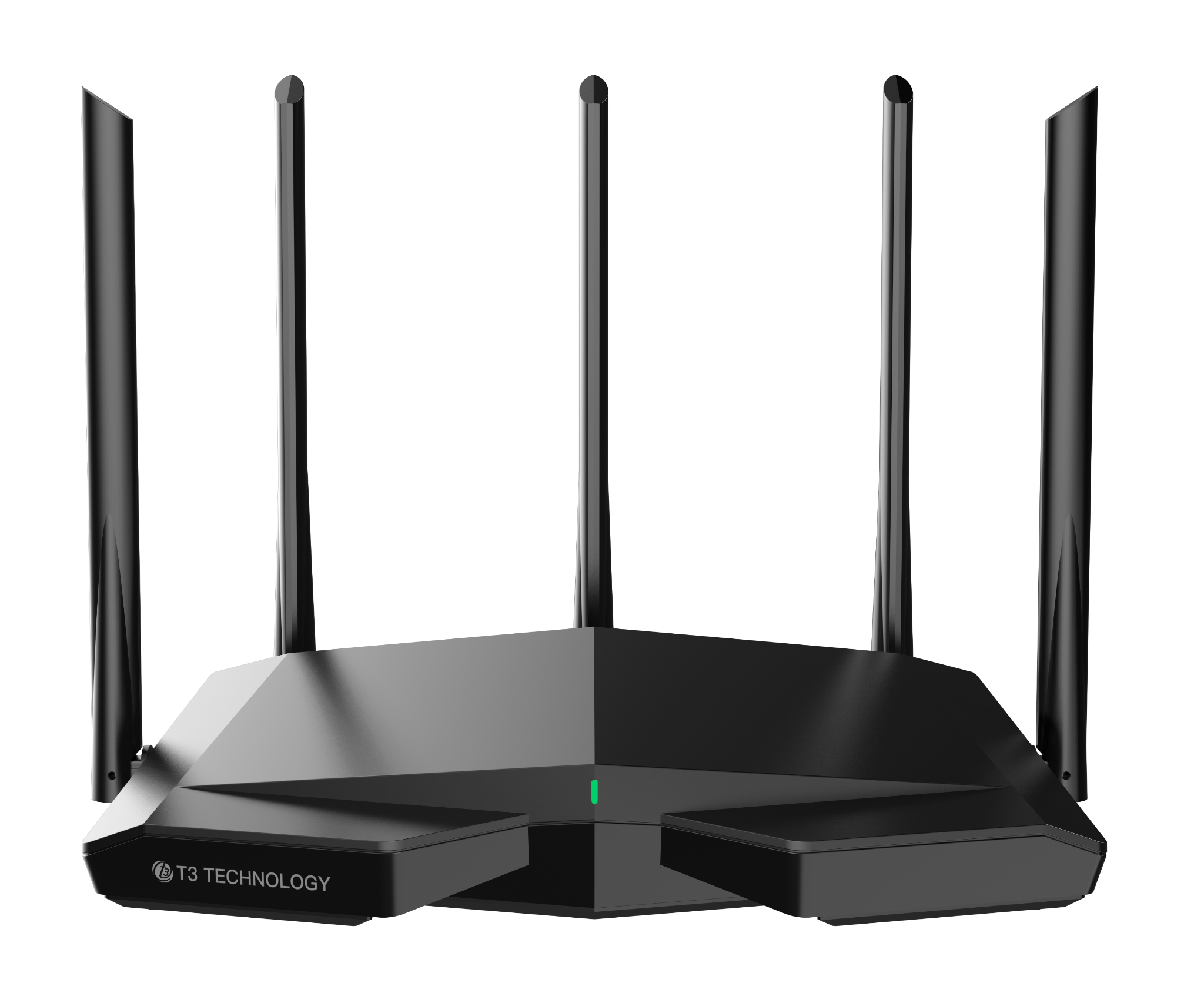
Wi-Fi 6E Router ProWR2
A new level of home connectivity
With tri-band Wi-Fi 6E
Highlights
Ready for every moment
of your connected world
Speed, coverage and support for multiple devices in one router.
Up to 5.66 Gbps
Combined wireless link rate

Supports 200+ devices
Connect multiple devices

Near-zero latency*
Responsive online experiences
Quad-core processor
1.7 GHz Quad-Core
Wide-area coverage
Wireless coverage throughout your space
6 GHz wireless performance
More bandwidth with a new frequency band

4K streaming support
Enjoy high-resolution video

8K streaming support
Ready for high-resolution content

AR / VR support
For immersive experiences
* Near-zero latency describes a brochure feature. Actual latency depends on devices, the network and the environment.
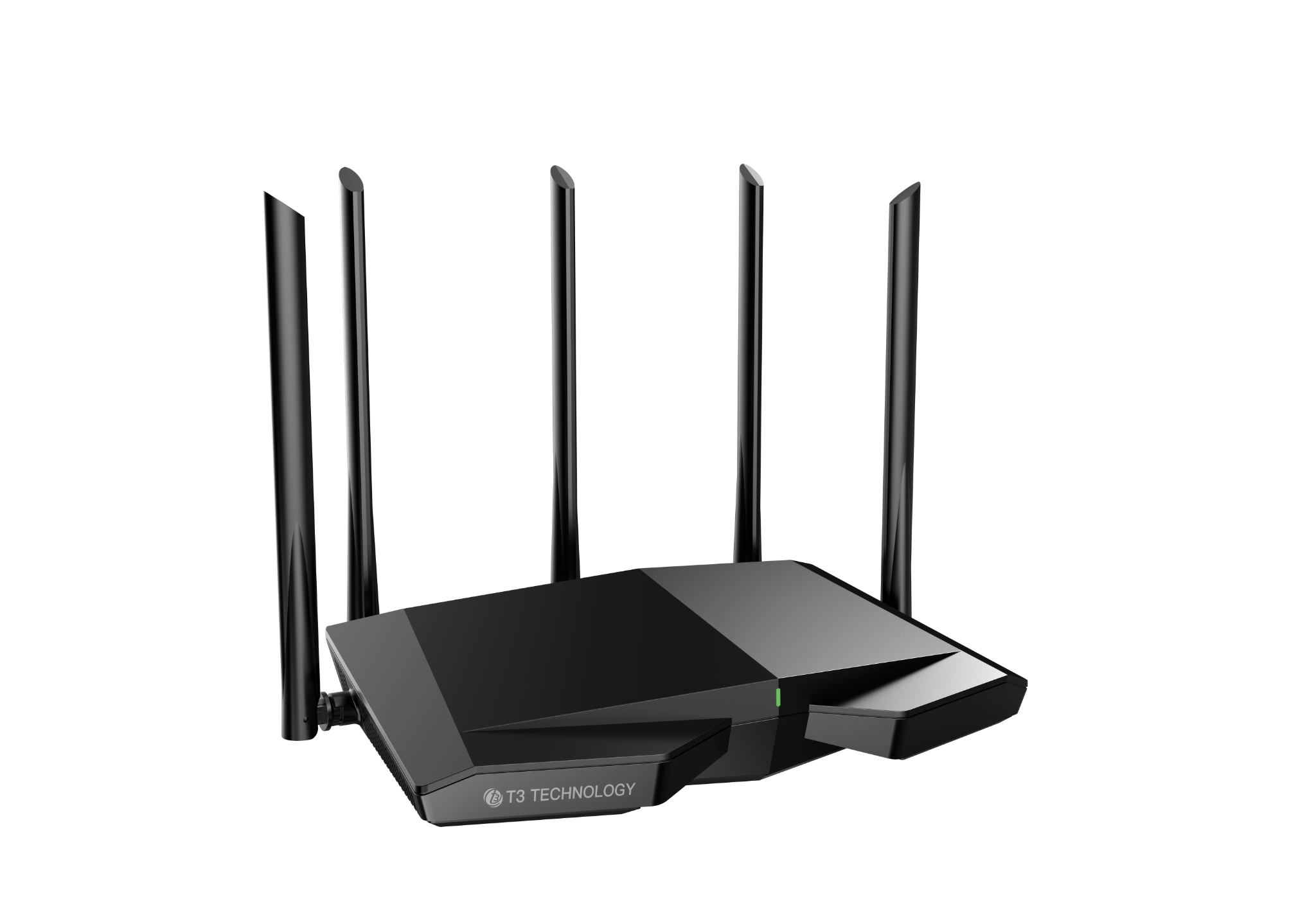
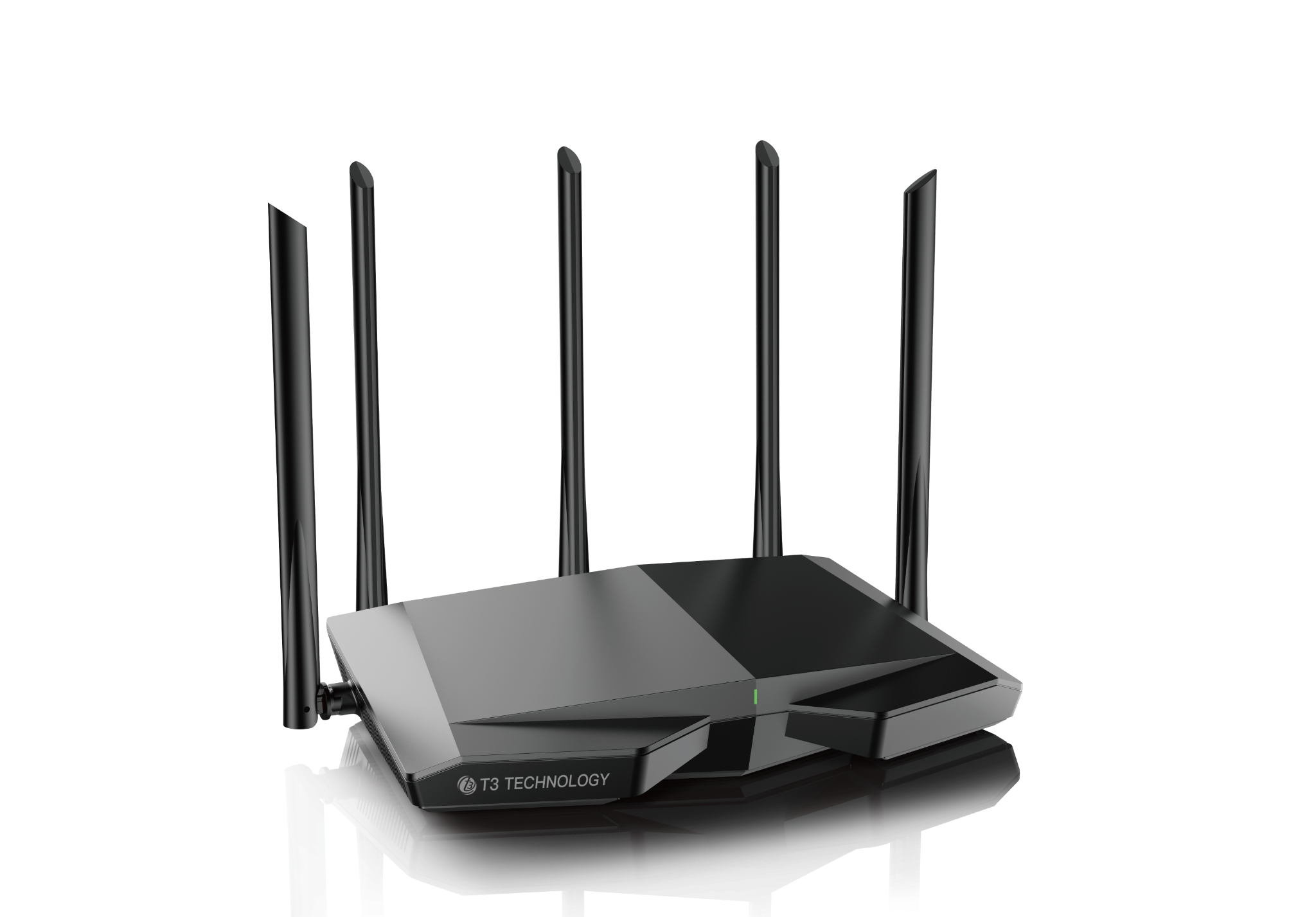
Wi-Fi 6E
One more frequency bandMany more possibilities
Wi-Fi 6E adds the 6 GHz band to 2.4 and 5 GHz, helping distribute connections for everything from browsing to high-resolution streaming and responsive gaming.
- Three bands: 2.4 / 5 / 6 GHz
- IEEE 802.11a/b/g/n/ac/ax standards
- Quad-core processor
Wireless performance
Power up to
5.66 Gbps*

Upload / download speed up to
Maximum combined wireless link rate across all three bands, as specified in the product information.
* 5.66 Gbps is the maximum theoretical combined wireless link rate (approximately 861 + 2,402 + 2,402 Mbps). Actual speeds depend on devices, distance, obstacles, interference and your internet service.
Coverage
Wider coverageConnect throughout your home
Plan your network around every corner. Add Mesh nodes to extend coverage where needed. Actual results depend on your home layout, walls and installation locations.
Wide-area coverage
Connect across your home
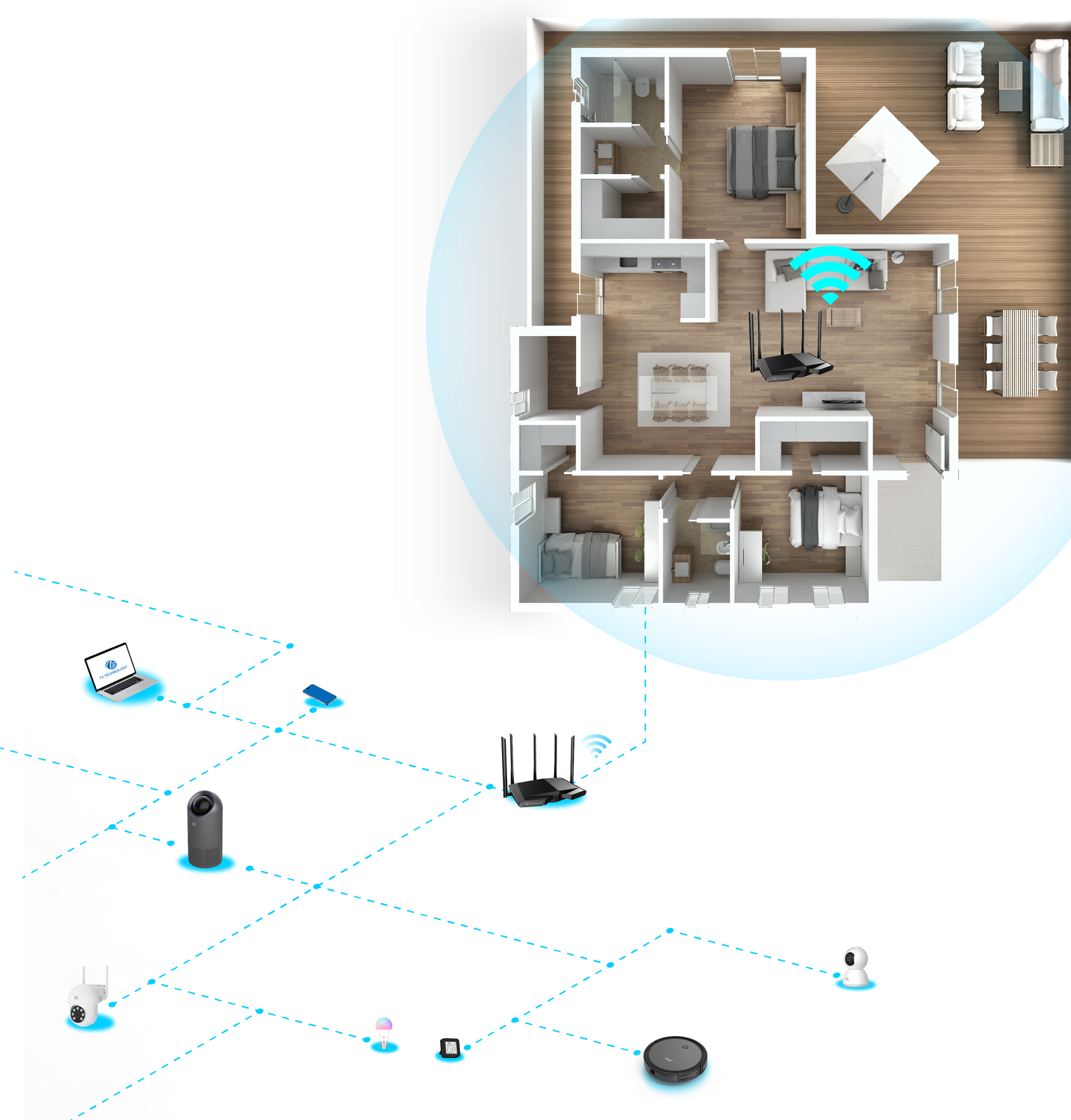
Supports up to 200 devices
As shown in the coverage reference
* The 280 m² figure comes from the brochure and is provided for reference. Actual coverage depends on the home layout, obstacles and installation locations.
Quad-Core
The power behind every connection
A quad-core processor helps manage online activities and multiple devices at the same time.
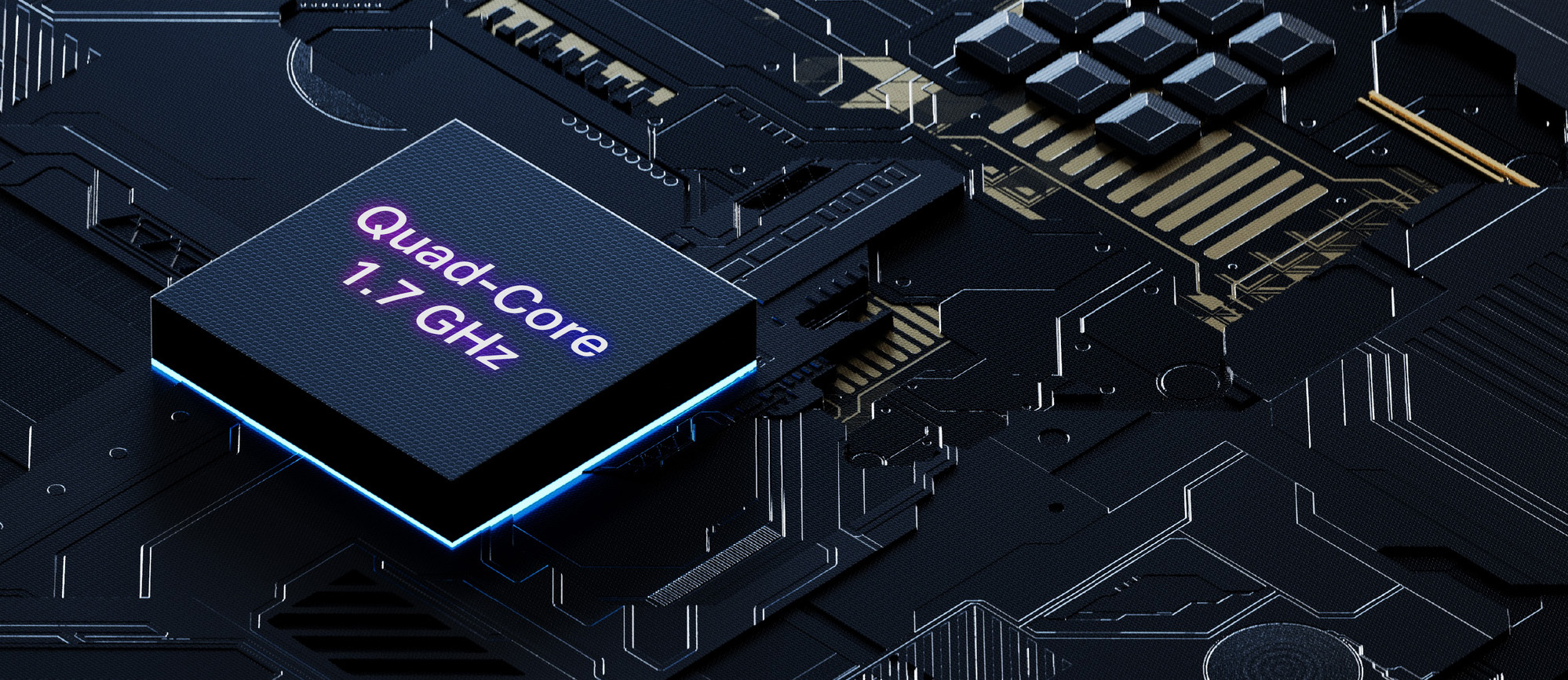
High-performance CPU
Low latency
A 1.7 GHz Broadcom quad-core CPU, together with wider 6 GHz channels and increased capacity, helps deliver greater performance.
Made for more
From homes with multiple devicesto workplaces that keep moving
Make a difference
Wider channels for 4K / 8K video and AR / VR gaming.

More immersive experiences
Wi-Fi 6E supports a maximum combined wireless link rate of 5,665 Mbps for AR / VR gaming, 8K streaming and simultaneous video calls. Actual experience depends on your network and devices.

Connect across larger spaces
Connect multiple devices and extend your network with Mesh to suit your space. The workplace image is illustrative.
Installation and setup
Set up as a router or add a Mesh node
Connection and setup instructions based on the product manual.
Router setup
Scenario 1: Set up the device as a router
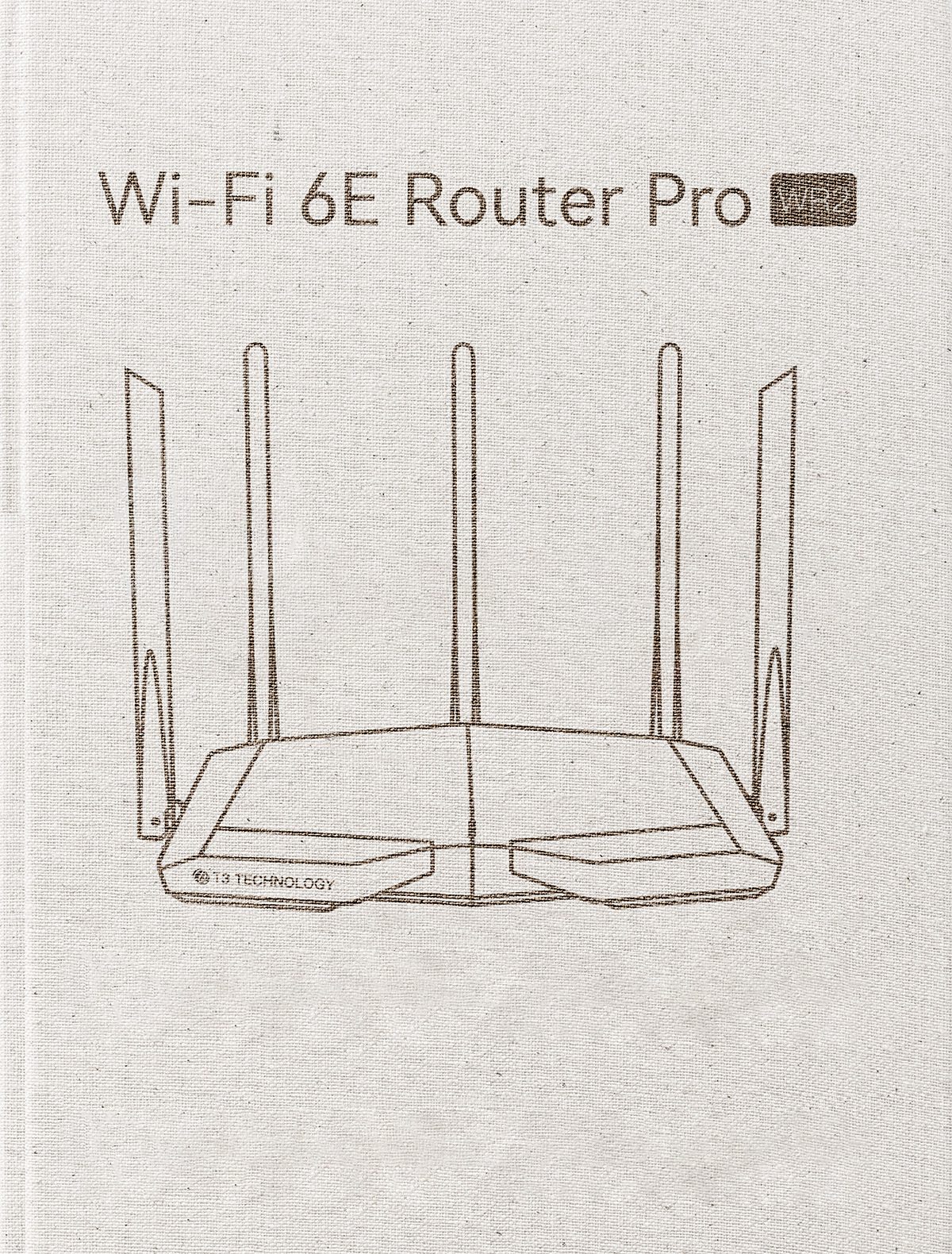
Tips from the WR2 manual
Connect the router to the internet
Import your PPPoE username and password
- Power on your original and new routers.
- Use an Ethernet cable to connect the WAN port of your original router to LAN port 1, 2 or IPTV/3 on WR2. When the new router's LED blinks rapidly for 8 seconds, the PPPoE credentials are imported.
- Disconnect the original router.
Connect the WAN port of WR2
- Make sure WR2 is powered on.
- Use an Ethernet cable to connect the WAN port of WR2 to the LAN port of your modem or an Ethernet outlet.
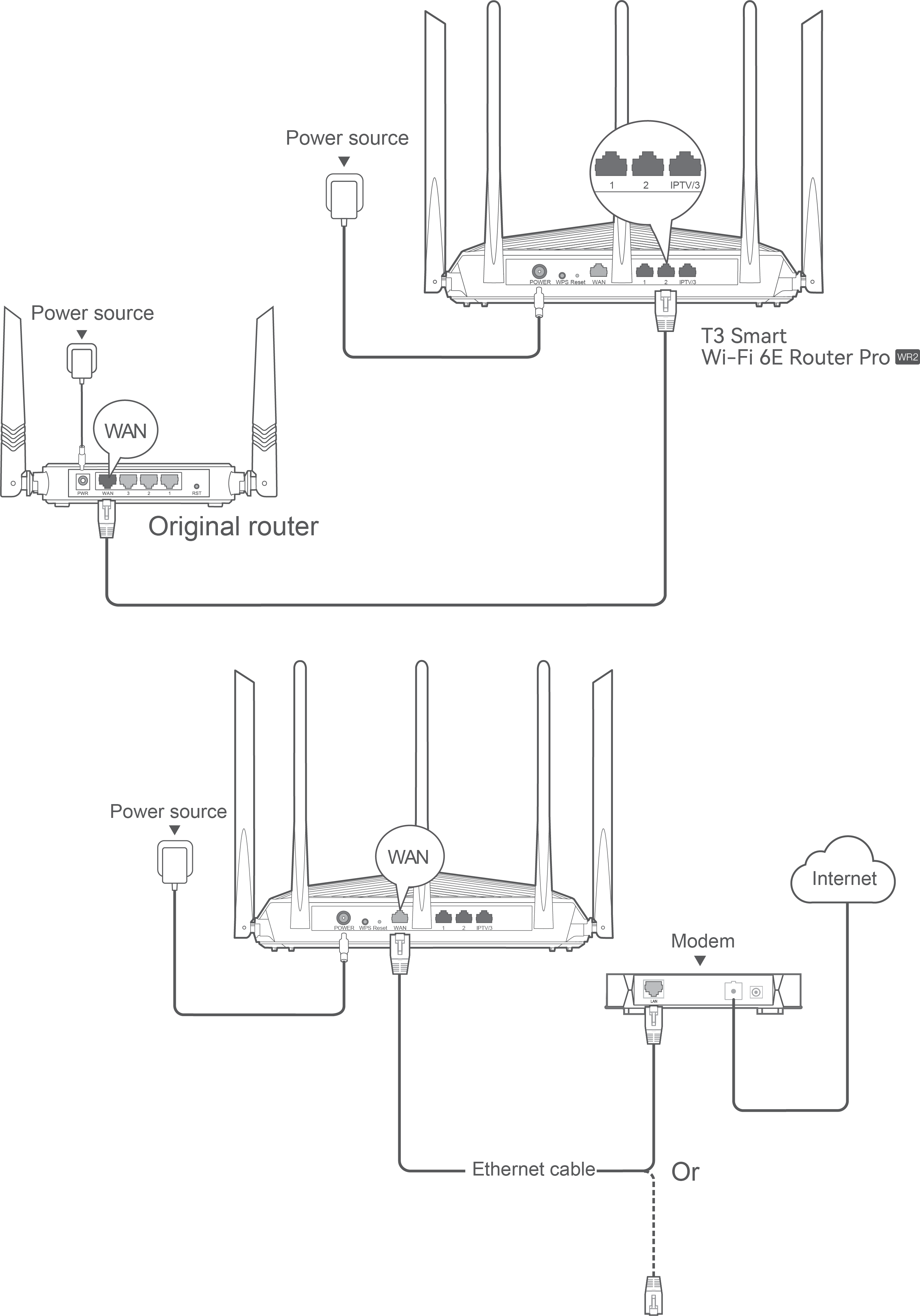 Power sourcePower sourceOriginal routerPower sourceWAN portInternetModemEthernet cableOr
Internet connection
Connect and configure the internet
- Connect your phone or another wireless device to WR2 Wi-Fi using the network name and password on the bottom label. Alternatively, connect your computer with an Ethernet cable to LAN port 1, 2 or IPTV/3.
- Open a browser and enter T3wifi.local.com in the address bar, then select Start Now.
- The router detects your connection type automatically. If you imported PPPoE credentials, select Next. Otherwise, select the ISP for your region, enter the required information and select Next.
- Set the Wi-Fi name, Wi-Fi password and router login password, then select Next.
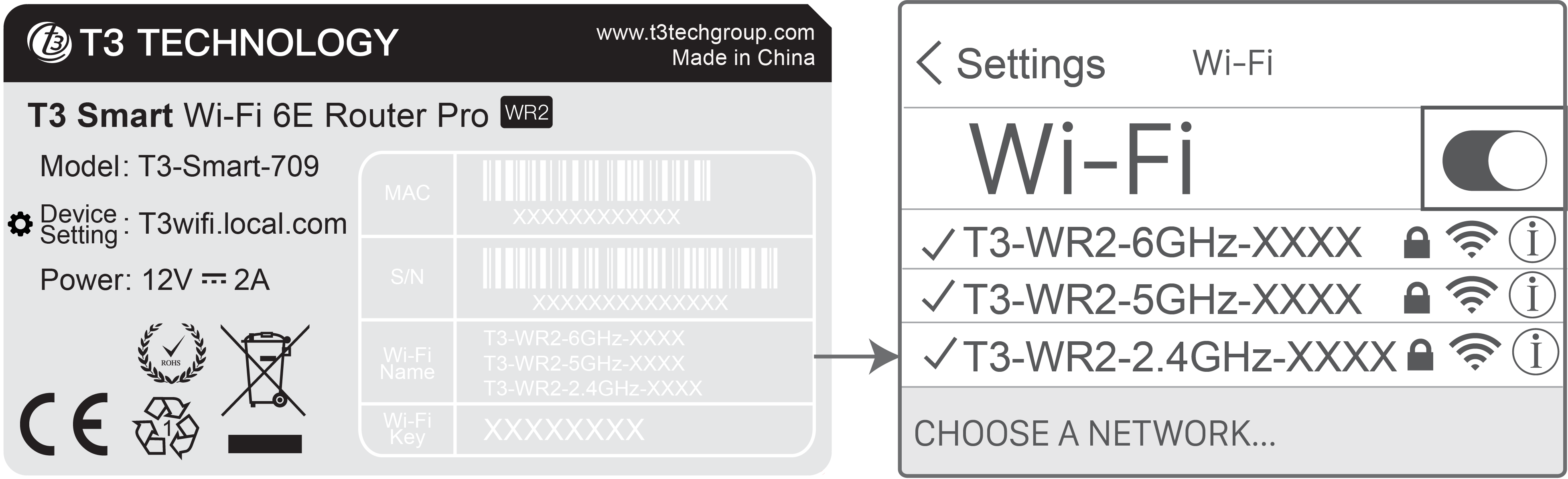 SettingsChoose a network…
Wi-Fi settings → select a WR2 network
Setup address: T3wifi.local.com
Power: 12V ⎓ 2A
Network names: T3-WR2-6GHz-XXXX / T3-WR2-5GHz-XXXX / T3-WR2-2.4GHz-XXXX
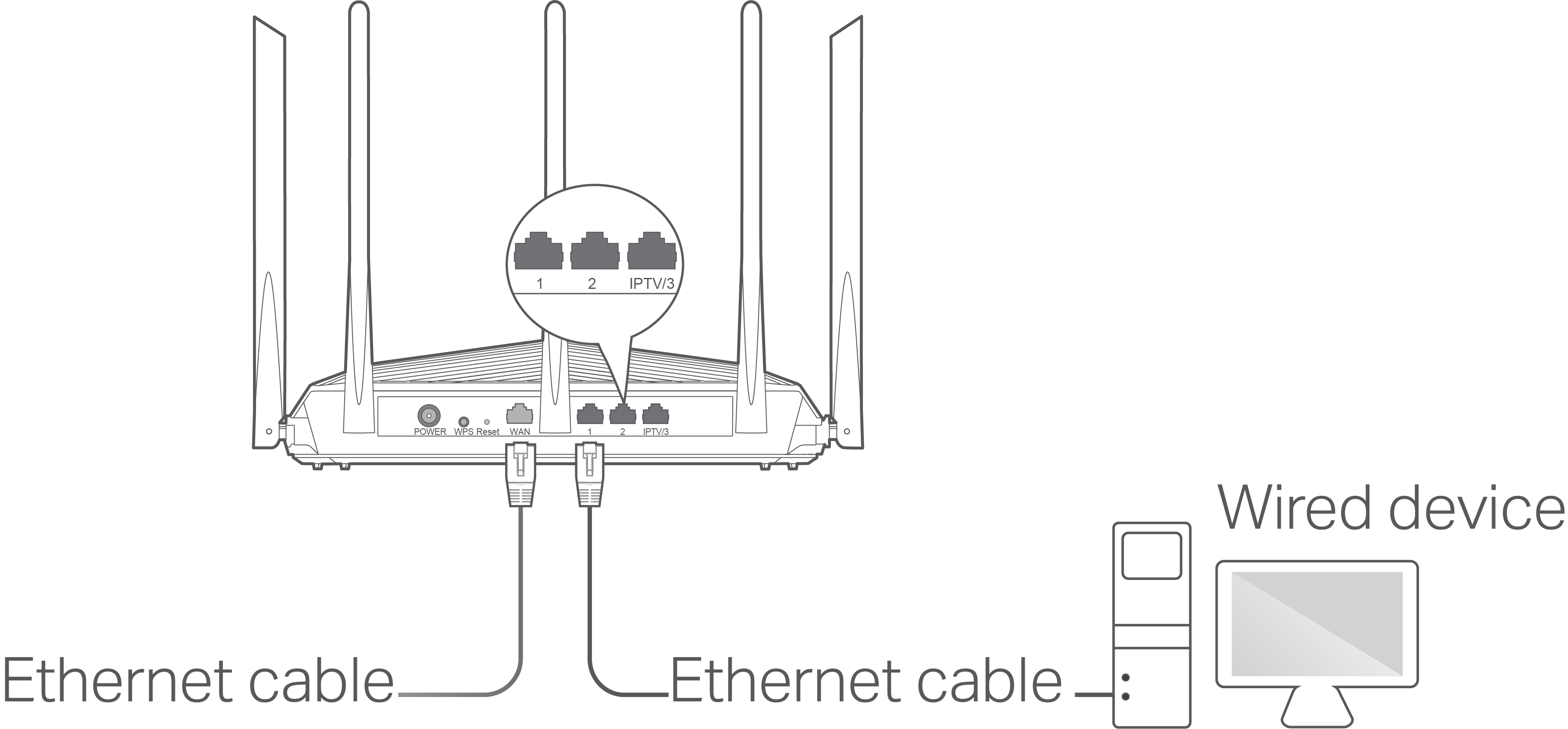 Wired deviceEthernet cableEthernet cable
Wireless devices: connect to Wi-Fi with the name and password you set.
1 · Get started
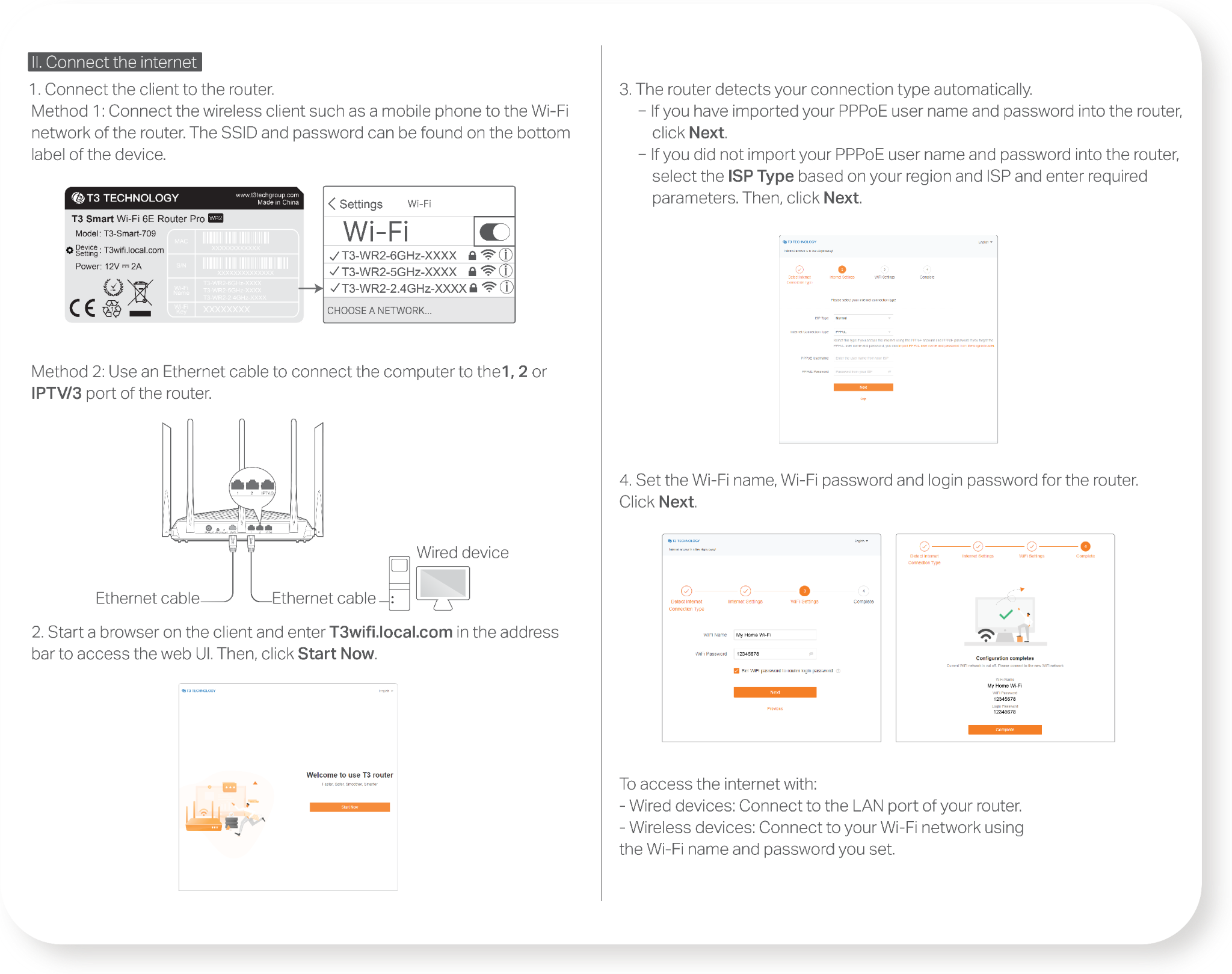
Welcome to your T3 router
T3wifi.local.com
2 · Detect connection
Internet settings
- ISP type
- Select your region and provider
- PPPoE username
- Information from your provider
- PPPoE password
- Information from your provider
3 · Wi-Fi settings
Set up your network
- Wi-Fi name
- Your preferred network name
- Wi-Fi password
- Set a network password
- Login password
- Set the router login password
You can use your Wi-Fi password as the login password where offered in the setup interface.
4 · Complete
Configuration complete
Connect your devices to the new Wi-Fi network with the name and password you set.
Setup interface text is based on the supplied screenshots and accompanies the instructions on this page.
Add a Mesh node
Scenario 2: Set up as an add-on node
Add WR2 to an existing network
- Place WR2 in an elevated, open position within 3 metres of the existing node.
- Connect the power adapter and wait for the LED to blink green slowly.
- Press the WPS button on WR2 for about 3 seconds until the LED blinks green rapidly. Within 2 minutes, press the MESH/WPS button on the existing node for about 3 seconds.
- When the LED turns solid green, networking is successful and WR2 becomes a secondary node.
Move the node to its operating location
- Keep each pair of nodes less than 10 metres apart. Place them high with few obstacles, away from microwaves, induction cookers and refrigerators.
- Power on the node again, wait for the LED to blink green slowly, then check the connection quality by its colour.
- If the LED blinks red slowly, relocate the node and repeat the steps to improve signal quality.
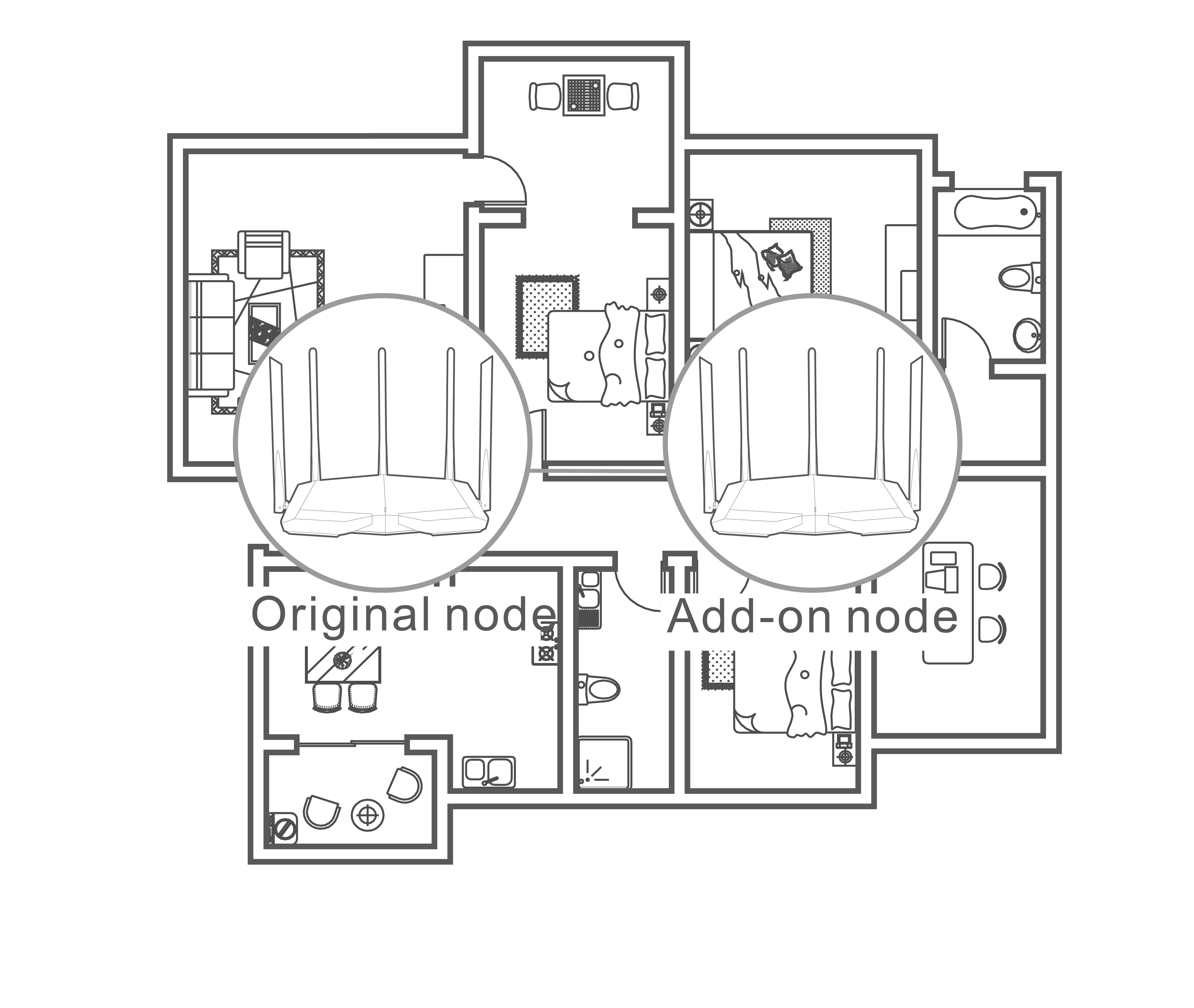 Original nodeAdd-on node
Excellent quality
Fair quality
Poor quality
Wireless devices: use your existing network's Wi-Fi name and password.
Designed in every detail
Explore every angle
See every side of WR2
Design, details and connections
in five product views.
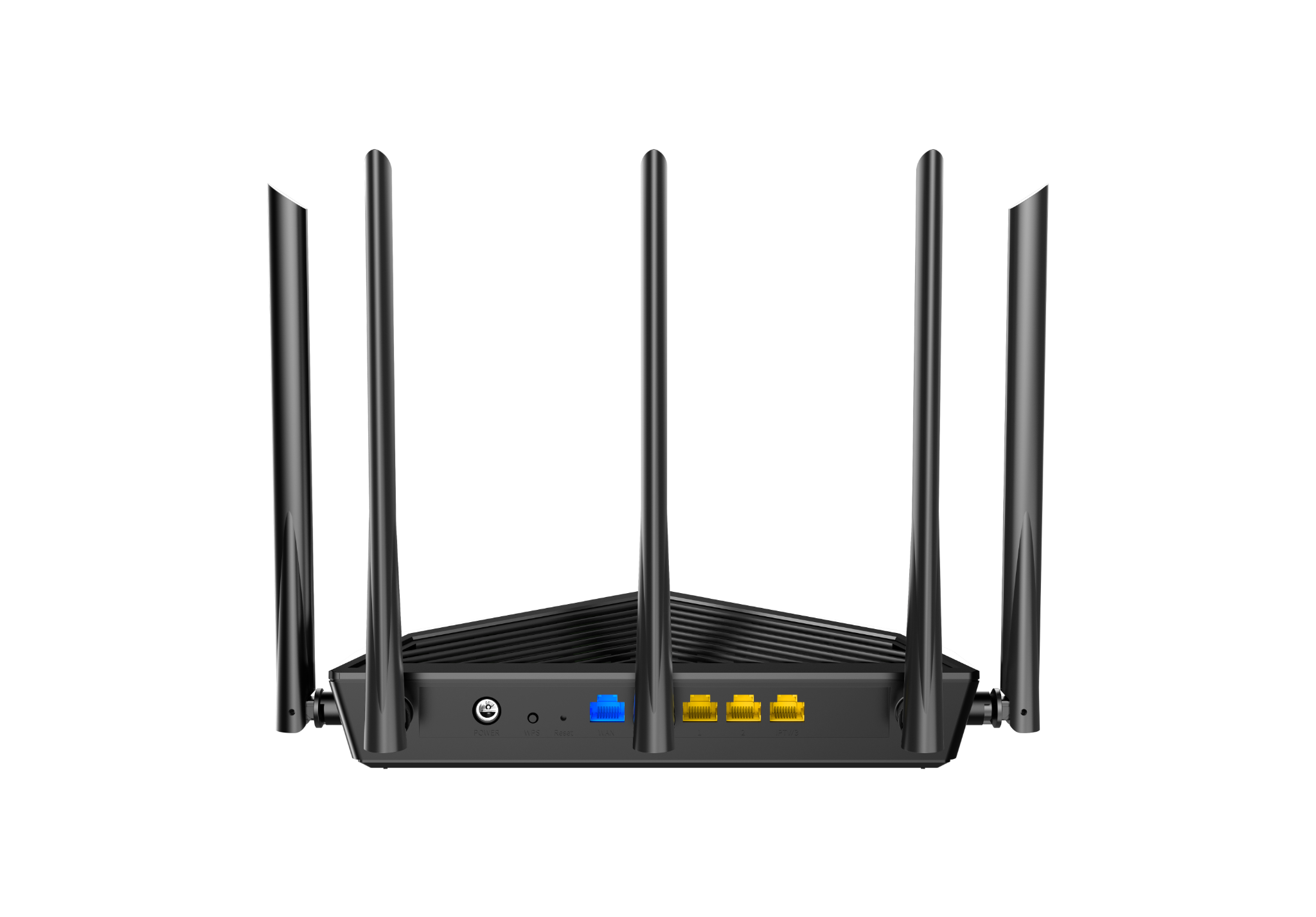
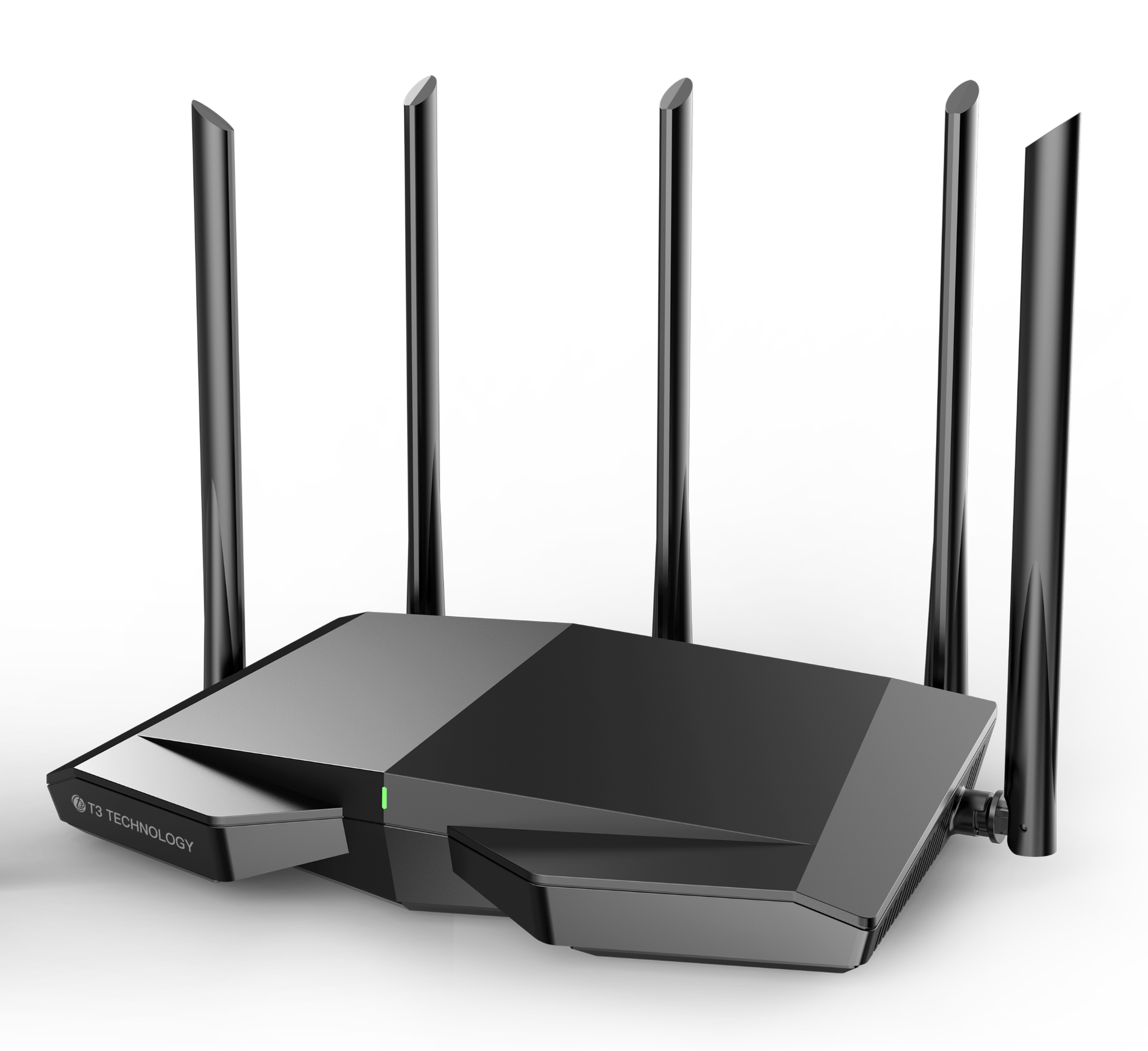
Front view
Product components
Every port
Every connection in place
Power input, controls and network ports on the back of WR2.
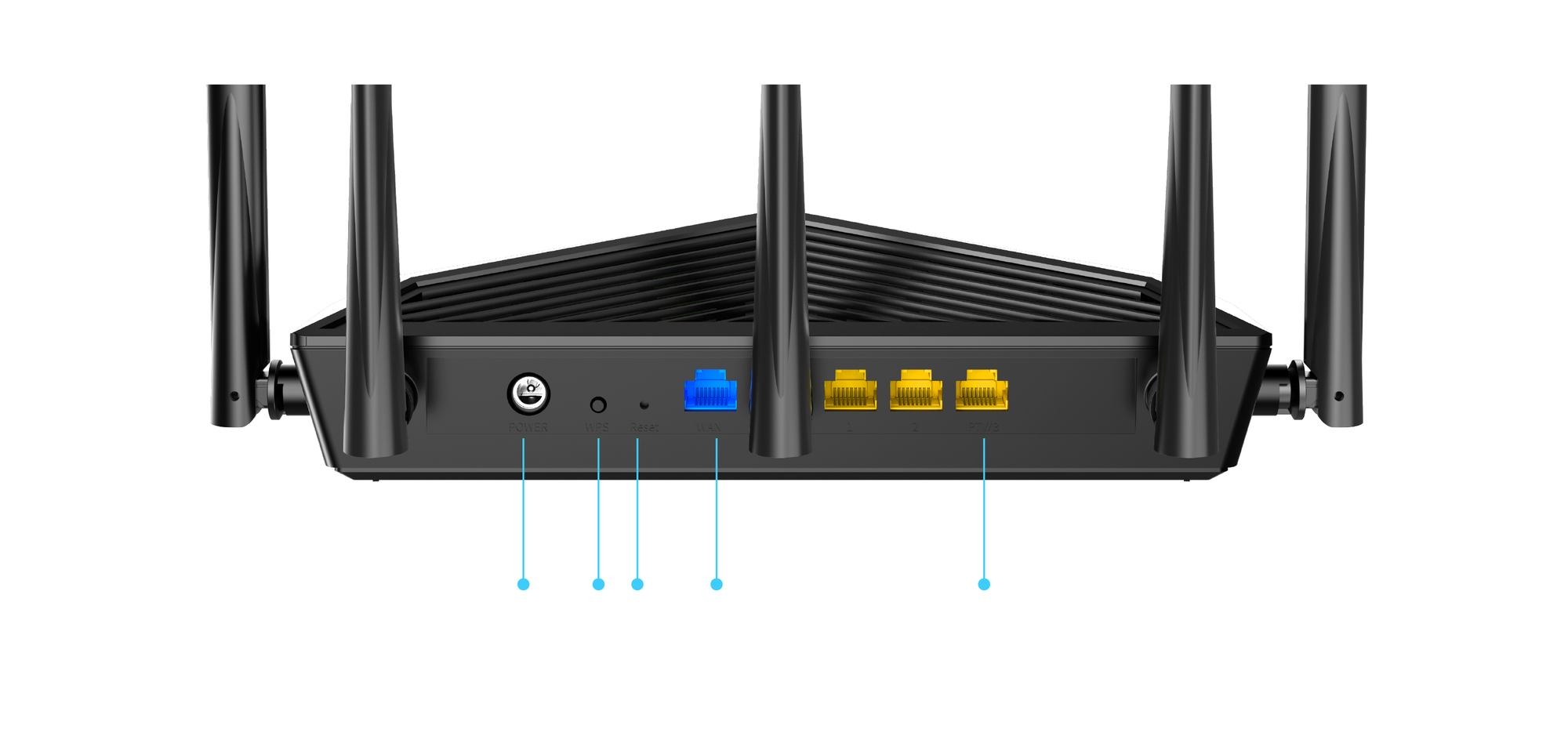 12345
12345Technical specifications
| Model | T3-Smart-709 |
|---|---|
| Wireless standards | IEEE 802.11a/b/g/n/ac/ax; Wi-Fi 6E |
| Frequency bands | 2.4 GHz / 5 GHz / 6 GHz |
| Maximum link rate | 2.4 GHz: 861 Mbps; 5 GHz: 2,402 Mbps; 6 GHz: 2,402 Mbps |
| Supported devices | Up to 200+ devices, according to the brochure |
| Power supply | AC adapter: 100–240V, 50/60Hz; output: DC 12V / 2A |
| Operating / storage temperature | 0–40°C / −40–70°C |
| Dimensions (L × W × H) | 261 × 168 × 60 mm |
| Warranty | 12 months, according to the brochure |
Specifications and supported uses depend on connected devices and the environment. Please confirm product details with the retailer before ordering.
A new world of connections,
Starting in your home.